A quick tour
This tour gets you signed in and oriented in a few minutes. You'll learn where things live in the app, then follow a single piece of data from the moment it arrives to the moment it powers an audience.
Sign in
- Go to pulse.azothedge.com.
- Sign in with your Pulse account.
- You'll land on your overview — a snapshot of your workspace.
Everything you do happens inside your workspace, which is private to your team. Nothing you see or build is visible to anyone outside it.
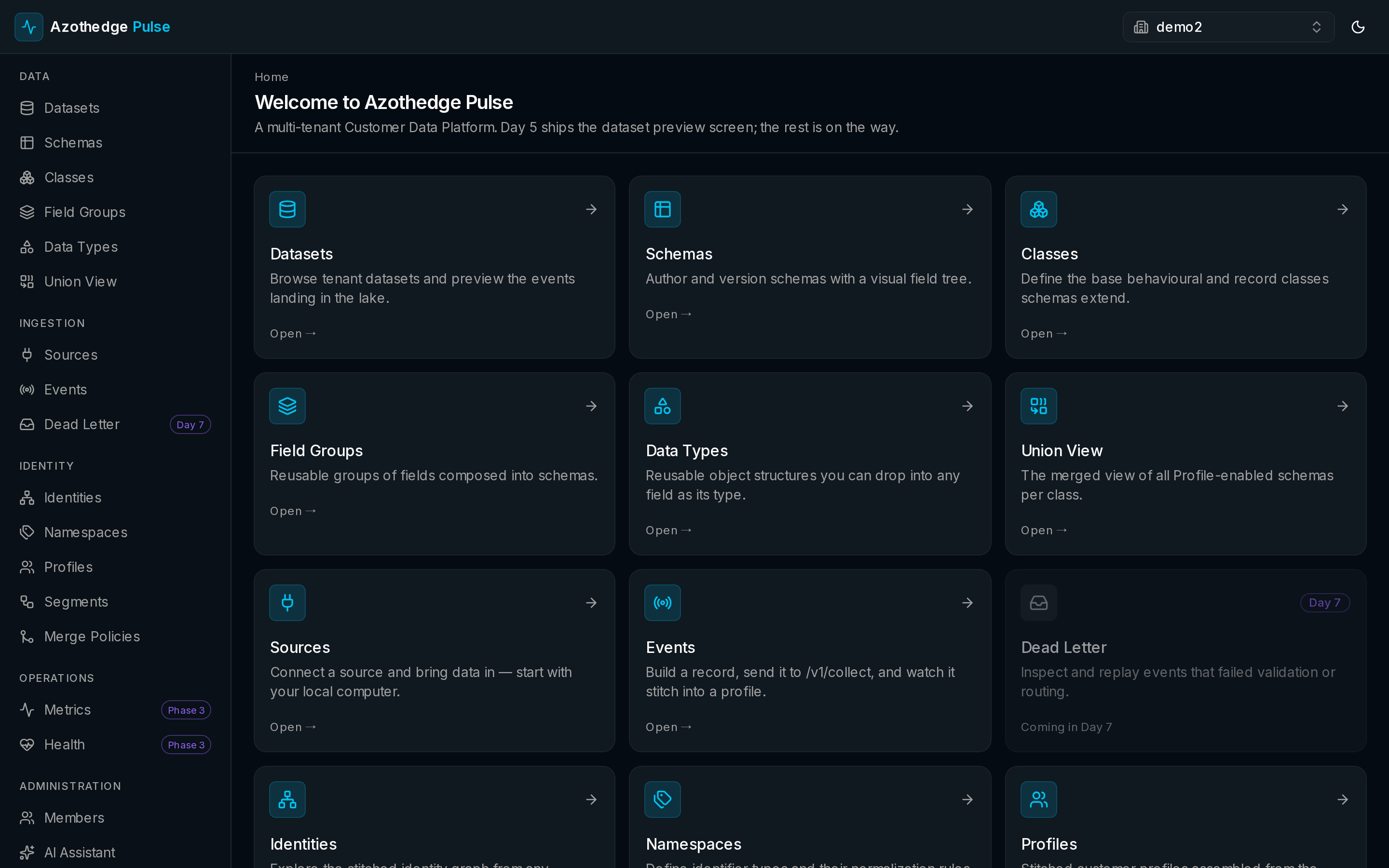
Find your way around
Everything in Pulse is reachable from the left navigation, organized into a few groups. Here's what each one is for.
Data
This is where you describe and manage the data you bring in.
- Datasets — where your records land; browse and preview what's flowing in.
- Schemas — the descriptions that tell Pulse the shape of your data.
- Classes, Field Groups, Data Types — the reusable building blocks you assemble schemas from.
- Union View — see related datasets together as one combined view.
Ingestion
This is where data comes in and where you keep an eye on it.
- Sources — connect the systems and files you want to pull data from.
- Events — watch data as it arrives.
- Dead Letter — a holding area for records that couldn't be accepted, so nothing is silently lost.
Identity
This is where scattered records become unified customers.
- Identities — the identifiers (like an email or phone number) Pulse uses to recognize people.
- Namespaces — the categories those identifiers belong to.
- Profiles — the single, unified view of each customer.
- Segments — the audiences you build from your customers.
- Merge Policies — the rules for combining records about the same person.
Administration
This is where you manage your workspace.
- Members — invite teammates and control who can view and who can change things.
- AI Assistant — get help and insights drawn from your data.
Follow your data
The quickest way to understand Pulse is to follow one piece of data through it. Here's the path every record takes.
- You connect a source. Point Pulse at a system or upload a file. Pulse starts pulling the data in. See Connect a source.
- It lands in a dataset. The incoming records collect in a dataset, where you can browse and preview them. See Manage datasets.
- Pulse builds profiles. As records arrive, Pulse automatically links the ones that belong to the same person into a unified customer profile — in real time.
- You build an audience. Group those customers by who they are and what they've done, and watch the count update live as you go. See Build an audience.
That's the whole loop: connect, land, unite, act. Everything else in Pulse makes one of those four steps richer or easier.
Next steps
-
Connect a source
Start the loop — bring data in from one of your systems or a file.
-
Customer profiles
See how Pulse turns incoming records into a single view of each customer.
-
Glossary
Plain-language definitions for every term you'll see in Pulse.