Activity log
The activity log is the record of everything that's happened in your workspace — who did what, when, and to which item. It's your answer to "who changed this?" and a complete trail for compliance and peace of mind. This guide shows you where to find it, how to narrow it down, and how to export it.
Before you start
The activity log is part of how Pulse keeps your data trustworthy and under your control — see Trust & governance.
Open the activity log
- Sign in to Pulse at pulse.azothedge.com.
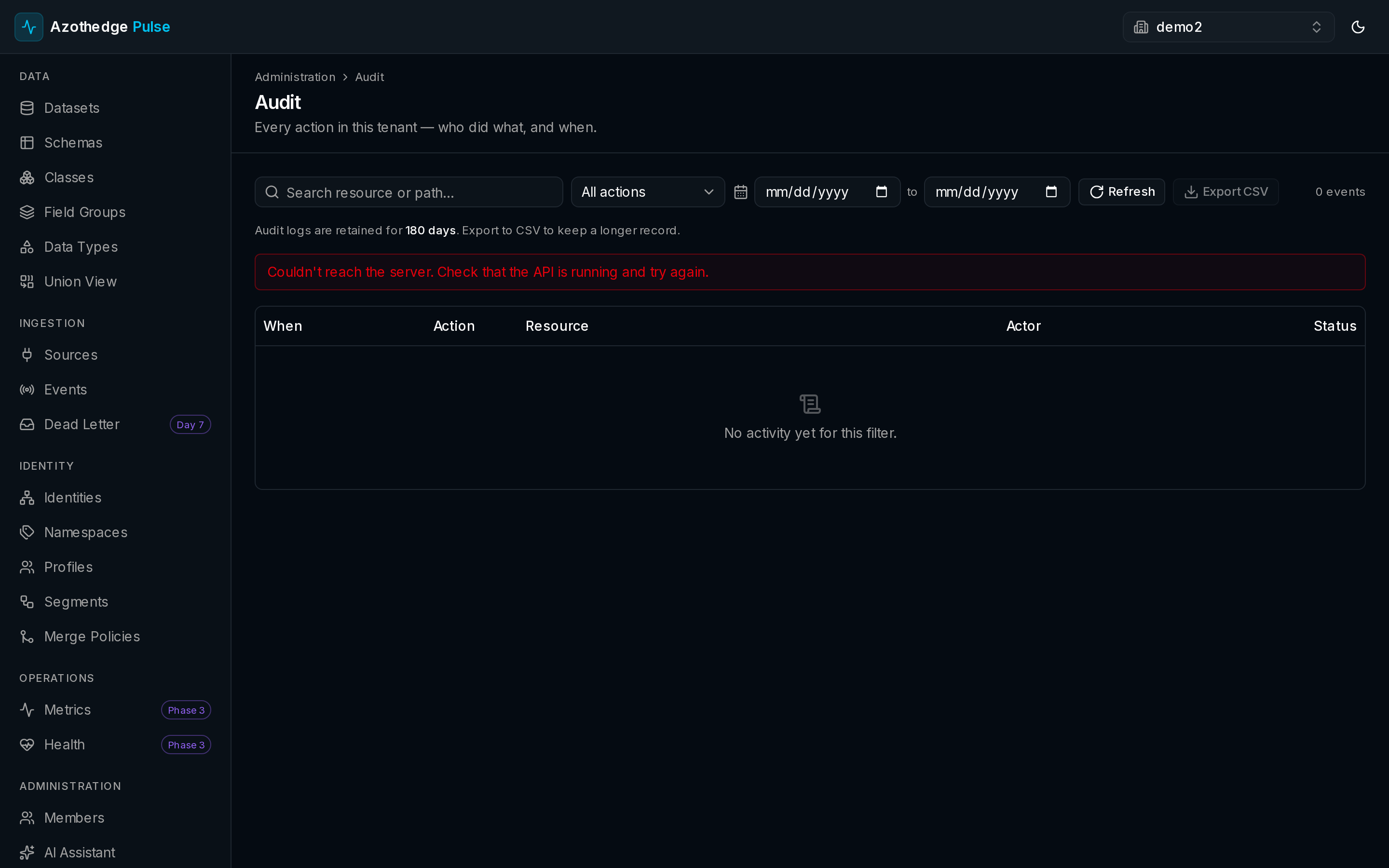
- In the left navigation, under Administration, open the activity view.
- You'll see a timeline of recent changes across your workspace.
What gets recorded
Every meaningful change is captured automatically, including:
- Who made the change — the team member responsible.
- What happened — for example, a dataset created, a schema published, an audience edited, or a source run.
- When it happened — the exact date and time.
- Which item it affected.
You don't have to turn anything on; Pulse records this for you as work happens.
Filter the log
When you're looking for something specific, narrow the list down:
- Filter by the action or type of change — for example, only deletions, or only datasets.
- Filter by a date range with From and To dates to focus on a particular window.
Narrow before you scan
Combining a type filter with a date range is the fastest way to find a single change among many — for example, every audience edited last week.
Export the log
Need a copy for records or to share with your compliance team? Export the activity log to a file you can open in a spreadsheet. The export reflects whatever filters you've applied, so you can export exactly the slice you need.
History is kept for you
Pulse retains your activity history for a generous window, so past changes stay available when you need to look back.
Next steps
-
Trust & governance
How Pulse keeps your data private, isolated, and under your control.
-
Manage your team
Control who can view and who can change things in your workspace.