Build an audience
An audience is a group of customers who share something in common — what they've done, what they've bought, or who they are. In Pulse you build an audience visually, with no code, and see a live estimate of how many customers match as you go.
This guide walks you through creating your first audience.
Before you start
Audiences are built from your customer profiles, so you'll get the best results once you've connected a source and your data is flowing in.
Open the audience builder
- Sign in to Pulse at pulse.azothedge.com.
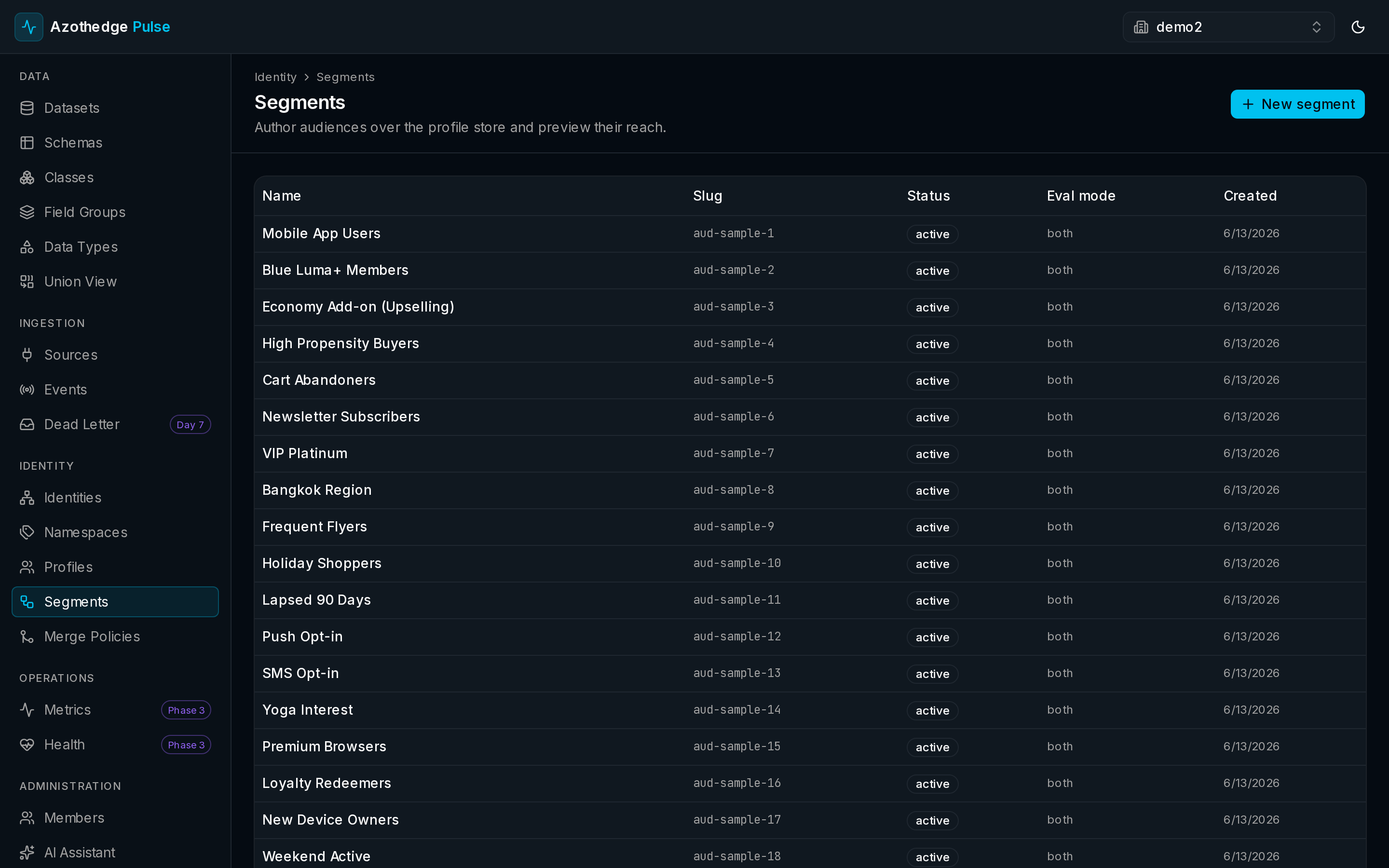
- In the left navigation, under Identity, select Segments.
- You'll see all of your existing audiences, when each was created, and its current size.
Create a new audience
- Select New segment.
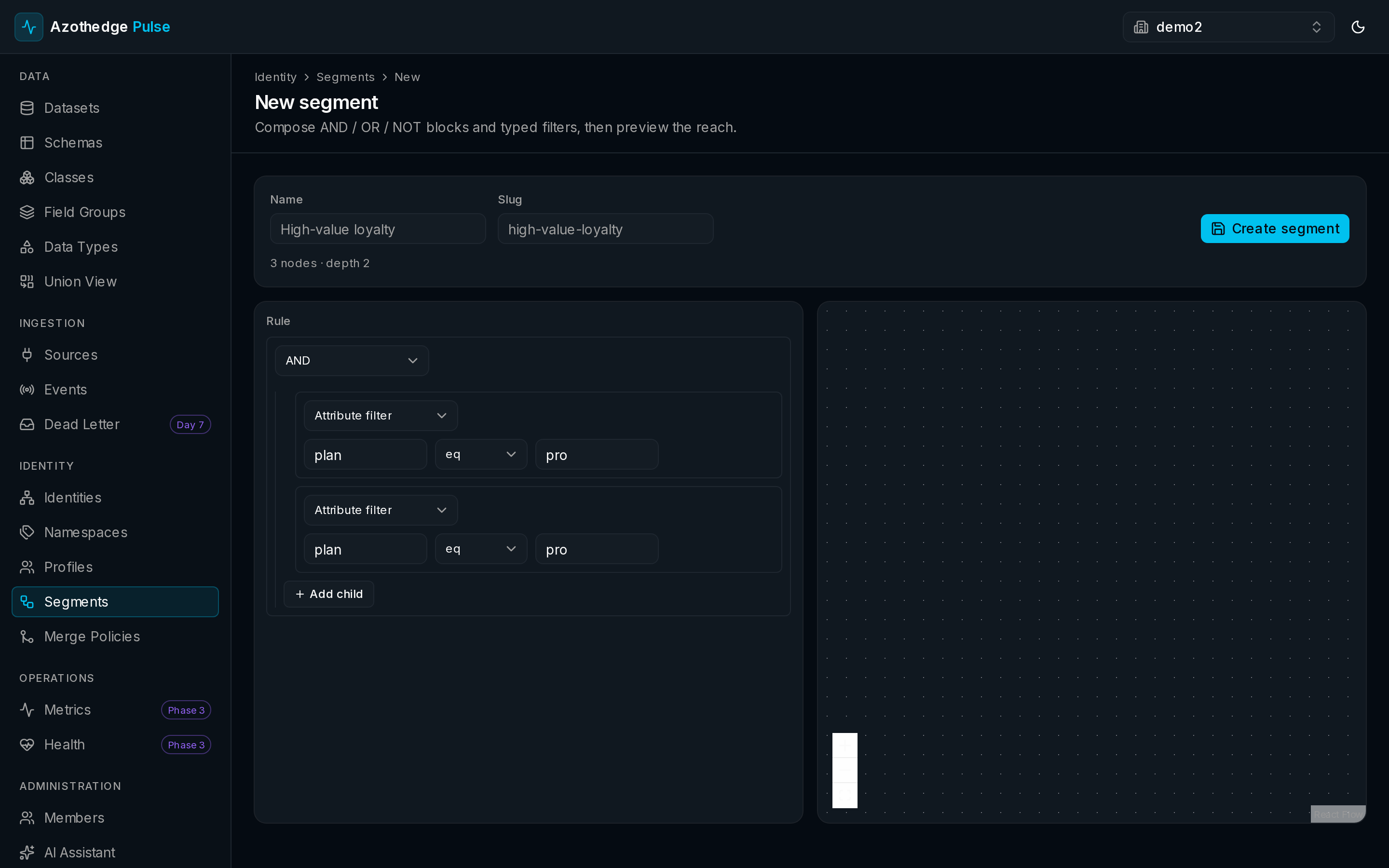
- Give your audience a clear Name — for example, High-value loyalty members. Pulse fills in a matching short name for you.
Describe who belongs
You build an audience by adding conditions and grouping them. Each condition tests one thing about a customer — for example, plan is pro or country is Thailand.
- Choose how the conditions combine:
- AND — a customer must match all of the conditions.
- OR — a customer must match any of the conditions.
- NOT — exclude customers who match.
- Select Attribute filter to add a condition. Pick the field, choose how to compare it (for example is equal to), and enter the value.
- Select Add child to add more conditions, or to nest a group inside another for more precise targeting — for example, plan is pro AND (country is Thailand OR country is Singapore).
Build it up gradually
Start with one condition, check the size, then add more. It's easy to narrow an audience too far — the live count tells you immediately when that happens.
Check the live size
As you add and change conditions, Pulse shows an estimated reach — roughly how many customers currently match. Use it as a sanity check while you build. The estimate is based on a sample of your customers, so the final audience may differ slightly.
Save your audience
When you're happy with the conditions, select Create segment. Your audience is saved and starts evaluating against your customers right away — and it keeps itself up to date as new data arrives and customers start or stop matching.
Edit or retire an audience
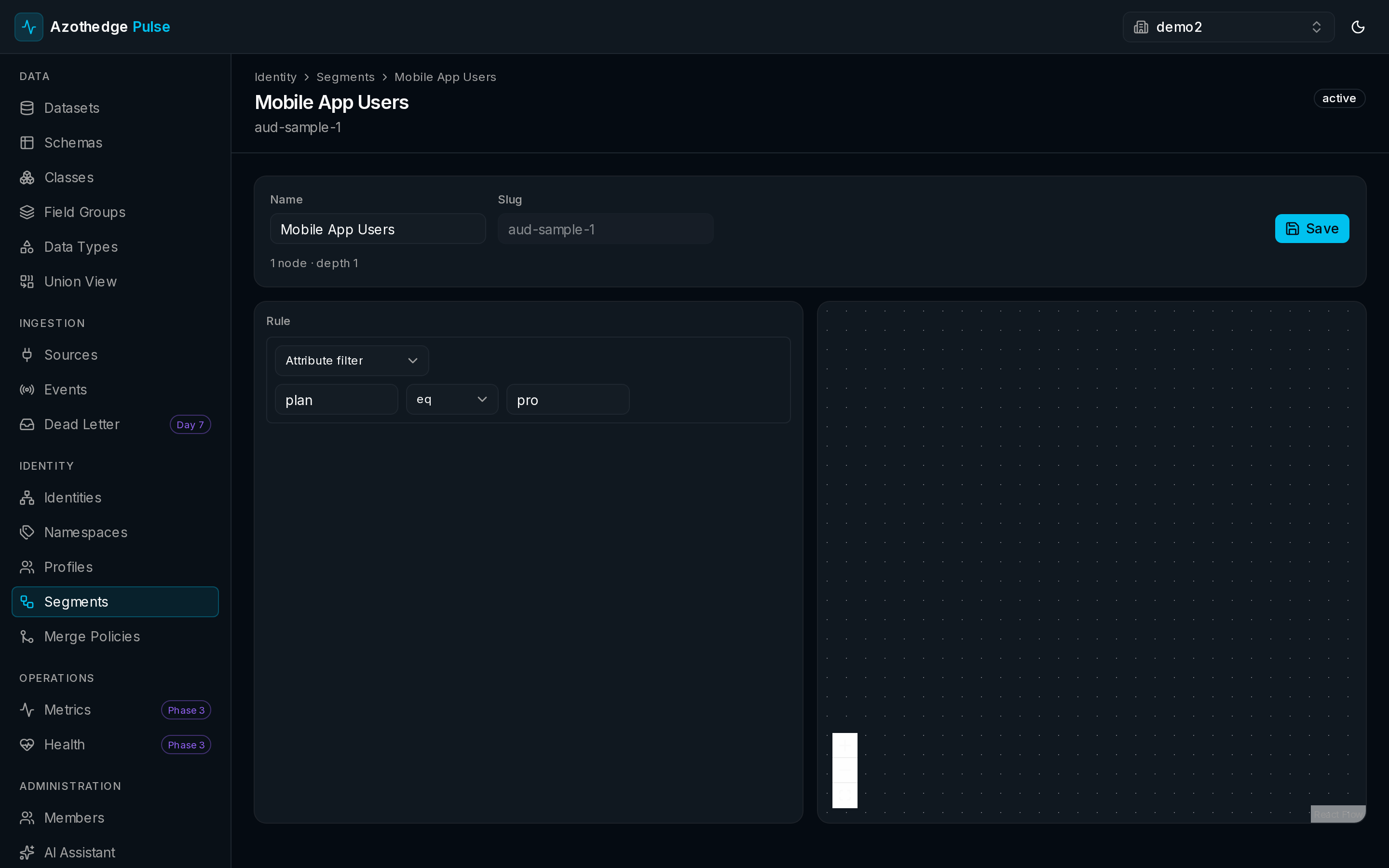
Open any audience from the Segments list to:
- Refine it — adjust the conditions; the membership recalculates.
- Rename it — give it a clearer name as your strategy evolves.
- Archive it — retire an audience you no longer use without deleting its history.
Next steps
-
Understand profiles
Audiences are only as good as the customer view behind them.
-
How audiences work
The ideas behind audiences and how Pulse keeps them current.