Manage your team
Pulse is better with your whole team. Inviting teammates lets them work alongside you, and roles let you control who can simply view your data and who can change it. This guide walks you through adding people and choosing the right role for each.
Before you start
Everyone you invite joins your workspace — your team's private, isolated space in Pulse. People only ever see your workspace's data.
Open Members
- Sign in to Pulse at pulse.azothedge.com.
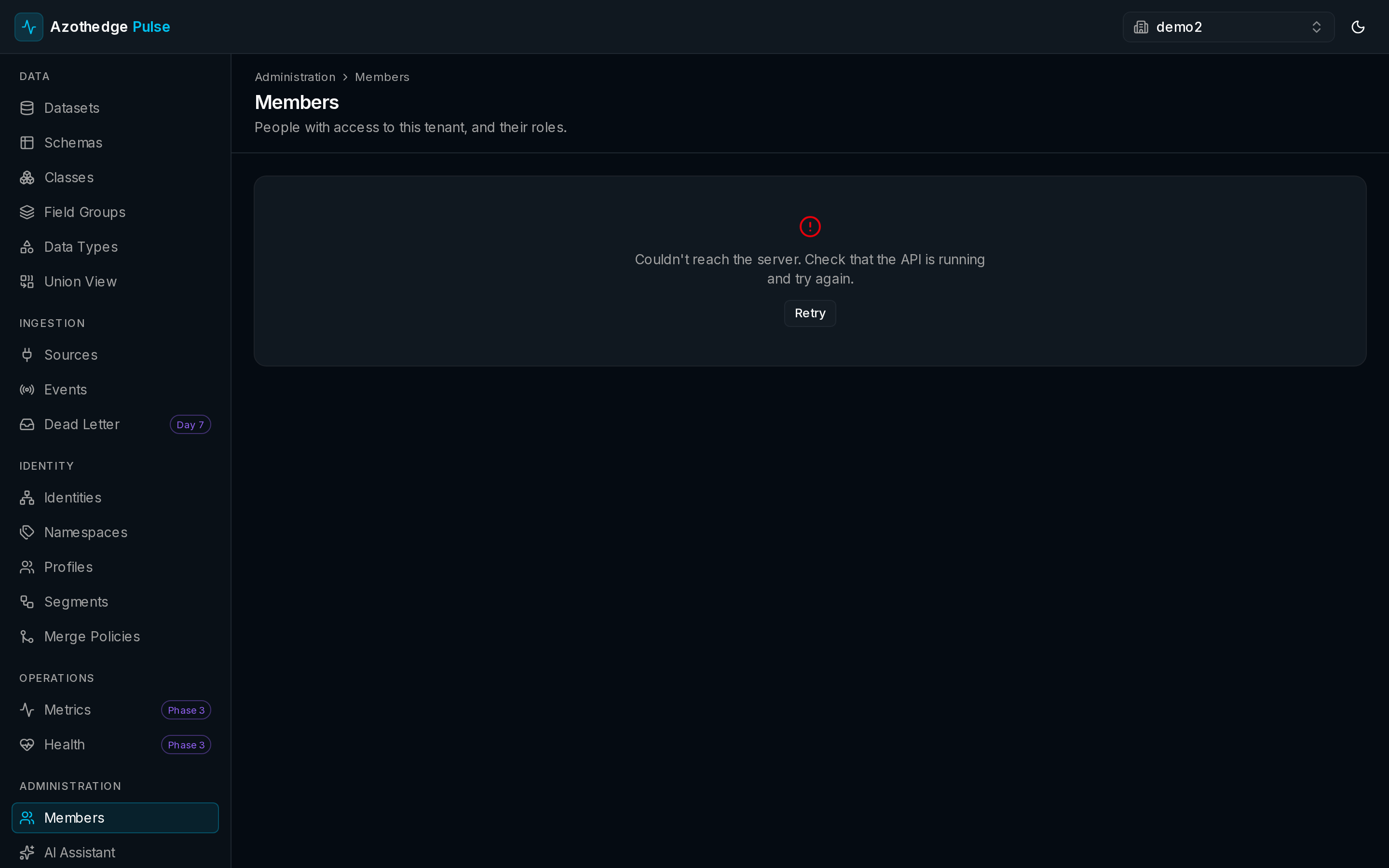
- In the left navigation, under Administration, select Members.
- You'll see everyone on your team and the role each one holds.
Invite a teammate
- Select to invite a new member.
- Enter their email address.
- Choose the role they should have (see the table below).
- Send the invitation. They'll get an email to join your workspace.
Start with the least access needed
It's easy to raise someone's role later. Inviting people as Viewer or Editor first, and upgrading when needed, keeps your workspace secure.
Choose a role
Each role grants a different level of access:
| Role | What they can do |
|---|---|
| Viewer | See your data — datasets, profiles, audiences, and more — but not change anything. |
| Editor | Everything a Viewer can do, plus make changes: create and edit schemas, datasets, audiences, and the like. |
| Admin | Everything an Editor can do, plus manage the team — invite members and set their roles. |
| Owner | Full control of the workspace, including its highest-level settings. |
Change or remove a member
From the Members list you can update someone's role as their responsibilities change, or remove a person who no longer needs access.
Next steps
-
About workspaces
Understand how your team's space is kept private and isolated.
-
See who did what
Every change is recorded — review the activity log for your workspace.